Xbox Play Anywhere is a Microsoft Store entitlement badge, not a universal PC feature. When a title qualifies, one digital purchase on your Microsoft account can unlock installs on both Xbox console and Windows PC — but only through Microsoft’s ecosystem, only on the same account, and only when the store page confirms eligibility.
Direct answer
Play Anywhere saves money when you genuinely split play between an Xbox console and a Windows PC and you buy the qualifying Microsoft Store SKU once. It does not apply to Steam, Epic or GOG purchases, does not transfer Game Pass streaming access into a permanent cross-platform license, and does not apply when the store page lacks the badge. Before buying, verify the Xbox Play Anywhere badge on the Microsoft Store product page for the exact edition you will purchase.
What Xbox Play Anywhere means
Microsoft uses Xbox Play Anywhere to mark select digital games where a single qualifying purchase entitles the same Microsoft account to install and play on Xbox console and Windows PC without buying the base game twice. The benefit is cross-buy on owned Microsoft entitlements — game progress is saved through Xbox and moves between supported Xbox consoles, Windows PCs and supported Windows handhelds on the same account. Achievements and Gamerscore are shared. Game add-ons bought or earned for a qualifying owned game — including add-ons, Season Passes, consumables and in-game unlocks per the official FAQ checked Jul 22, 2026 — are playable across supported devices. You may be signed into that game on only one supported device at a time.
What purchase qualifies
A qualifying purchase is a digital Microsoft Store or Xbox Store transaction for a product page that displays the Play Anywhere badge at checkout time. Buying on Xbox console or through the Xbox PC app on Windows can both produce the entitlement, provided the listing is Play Anywhere eligible.
Member-discounted purchases through PC Game Pass still convert to owned Microsoft licenses on your account when you buy the entitled SKU — and owned Play Anywhere titles should show both platform icons in your library after purchase. Always confirm the badge on the exact edition you pay for, not on a trailer or older news post.
Cautious verified examples that commonly show the badge on Microsoft Store listings checked Jul 22, 2026 include Forza Horizon 5, Sea of Thieves and Gears 5 — but publisher remasters, regional bundles and limited-time editions can differ. Treat these as illustrations to verify, not as a permanent universal list.
What does not qualify
- Steam, Epic, GOG or other third-party store keys — separate licenses with no automatic Play Anywhere unlock.
- Physical disc purchases, even for Xbox-branded boxes, unless the included digital entitlement explicitly includes Play Anywhere on the printed or in-box redemption terms.
- Game Pass subscription access alone — streaming or installing through Game Pass is access while subscribed, not the same as owning a Play Anywhere cross-buy license.
- Titles without the badge — some Microsoft-published games remain platform-specific SKUs.
- Assumed cross-save or cross-play — friends on Steam cannot inherit your Play Anywhere entitlement.
If the store page lacks the badge at purchase time, do not infer eligibility from genre, publisher or Game Pass availability.
Microsoft Store vs Steam, Epic and GOG
Open PC stores sell platform-specific licenses. A Steam purchase activates on Steam; a Microsoft Store Play Anywhere purchase activates through the Xbox app on PC and your Xbox console library. They do not merge automatically.
Some publishers offer account-linked cross-save between Steam and Xbox through a separate publisher login — that is a game-by-game feature, not Play Anywhere. Buying twice on two stores remains two unrelated purchases even when progress can sync through a Ubisoft Connect, EA app or similar bridge.
Choose Microsoft Store when console-plus-PC cross-buy on one account is your primary goal. Choose Steam or another open store when Workshop mods, Steam Deck workflows, or your friend group’s existing library matters more.
Shared saves and achievements
For an owned qualifying Xbox Play Anywhere digital game on the same Microsoft account, Xbox saves your progress and moves it between supported Xbox consoles, Windows PCs and supported Windows handhelds. Achievements and Gamerscore follow the same Xbox profile on both platforms. Sign into the same personal Microsoft account on console and in the Xbox PC app — guest profiles or account mismatches break entitlement recognition even when the game qualifies.
Always quit to the main menu or title screen cleanly before switching devices. Abrupt shutdowns mid-mission can still cause rollback if cloud sync has not finished uploading.
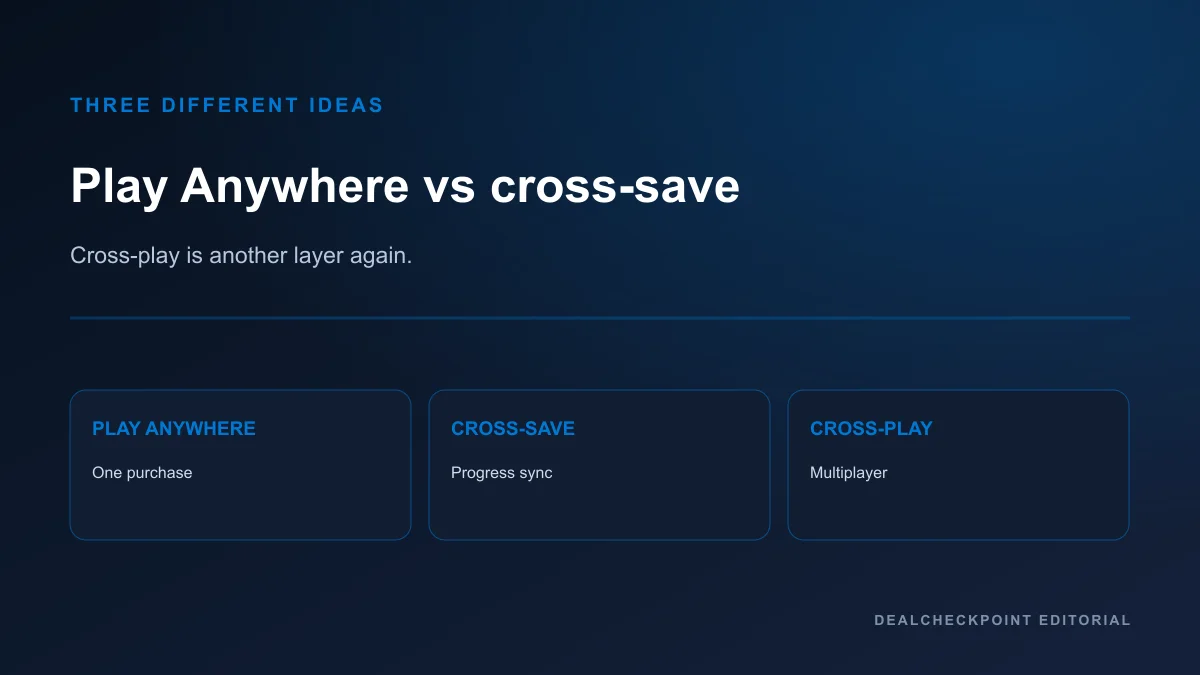
Cross-save vs cross-play
These terms solve different problems and should not be used interchangeably.
Cross-save moves your solo progress or shared profile data between platforms or store ecosystems when the game and publisher support it. Play Anywhere often includes cross-save between Xbox and PC through Xbox cloud saves, but only for qualifying Microsoft entitlements.
Cross-play lets players on different platforms join the same multiplayer session when the game’s live-service rules allow it. Sea of Thieves supports cross-play between Xbox and PC for many modes, but that multiplayer feature is independent of whether you bought a Play Anywhere license or access the game through Game Pass.
A game can offer cross-play without Play Anywhere, Play Anywhere without full cross-play, or both. Read the current official FAQ for the mode you care about.
DLC, expansions and editions
For a qualifying owned Play Anywhere game, add-ons bought or earned on your Microsoft account — including expansions, Season Passes, consumables and in-game unlocks per the official Xbox Play Anywhere FAQ checked Jul 22, 2026 — are playable across supported devices.
Real limits remain: the base game must be a qualifying digital Play Anywhere product on the same Microsoft account, Steam, Epic and GOG licenses do not gain Play Anywhere rights, physical discs do not qualify, Game Pass access is not permanent ownership, and third-party-store DLC does not transfer through Play Anywhere. Deluxe bundles can still mix Play Anywhere base entitlements with items sold under separate SKUs — confirm the exact edition at checkout.
Game Pass access vs purchased ownership
PC Game Pass provides access while subscribed to eligible titles through the Xbox PC app. Cancelling ends that access unless you buy a license or resubscribe. Play Anywhere cross-buy applies to purchased Microsoft entitlements, not to the subscription itself.
Many Game Pass titles are also sold as Play Anywhere purchases. While subscribed, you can install on console and PC when your tier includes both — but that convenience is governed by Game Pass rules and rotation notices, not by permanent cross-buy ownership.
If you finish a game during Game Pass and want console-plus-PC access after cancellation, compare the member discount against buying the Play Anywhere SKU outright. Read PC Game Pass explained for access mechanics and Is PC Game Pass worth it in 2026? for subscribe-or-buy math.
Same-account requirement
Play Anywhere requires the same Microsoft account on both the Xbox console and the Windows PC Xbox app. Child accounts, guest modes and profile switching can silently break entitlement recognition.
Work and school Azure AD accounts may not behave like consumer Xbox profiles for game libraries. Sign into the personal Microsoft account that actually owns the purchase before troubleshooting missing installs.
If a PC install asks you to buy again, the first check is account mismatch — not a failed Play Anywhere feature.
Family and Home Xbox rules
Microsoft family and home-console settings can let other household members access some content, but Play Anywhere is not a license to clone simultaneous installs across unrelated accounts. Home Xbox designation affects which console shares purchased content with other profiles on that device.
Family settings may restrict purchases, multiplayer or cross-device sign-ins for child accounts. Review privacy and family safety settings before expecting a child profile to carry Play Anywhere saves between console and PC.
Sharing rules change with policy updates. Treat household access as a cautious exception that must be verified on your specific account type, not as unlimited cross-account cloning.
Simultaneous-use limitations
Even with Play Anywhere, you may be signed into a qualifying owned game on only one supported device at a time under the same Microsoft account. Launching the same purchased title on console and PC simultaneously can fail or end an active session depending on the game’s online validation.
Game Pass adds separate concurrency rules for streaming and multiple install locations. Do not plan LAN-style dual sessions from one purchase without checking the title’s current policy.
Co-op with a friend still requires each player to hold their own entitlement where the game demands it — your Play Anywhere purchase does not grant a free copy to someone else’s account.
Offline and sync
Cloud saves require an online sync before offline play on the second device is safe. After playing on platform A, connect online, exit cleanly, and confirm sync icons or messages in the Xbox app before travelling with platform B offline.
Offline achievements and progress may queue locally, then conflict when two offline sessions diverge. Prefer one active device per campaign until you understand how the specific title resolves conflicts.
If progress appears older on the second platform, choose the newer cloud file when prompted rather than overwriting blindly.
How to verify eligible product
| Step | Where to look | What you should see |
|---|---|---|
| 1 | Microsoft Store web or Xbox app product page | Xbox Play Anywhere badge or explicit Play Anywhere text |
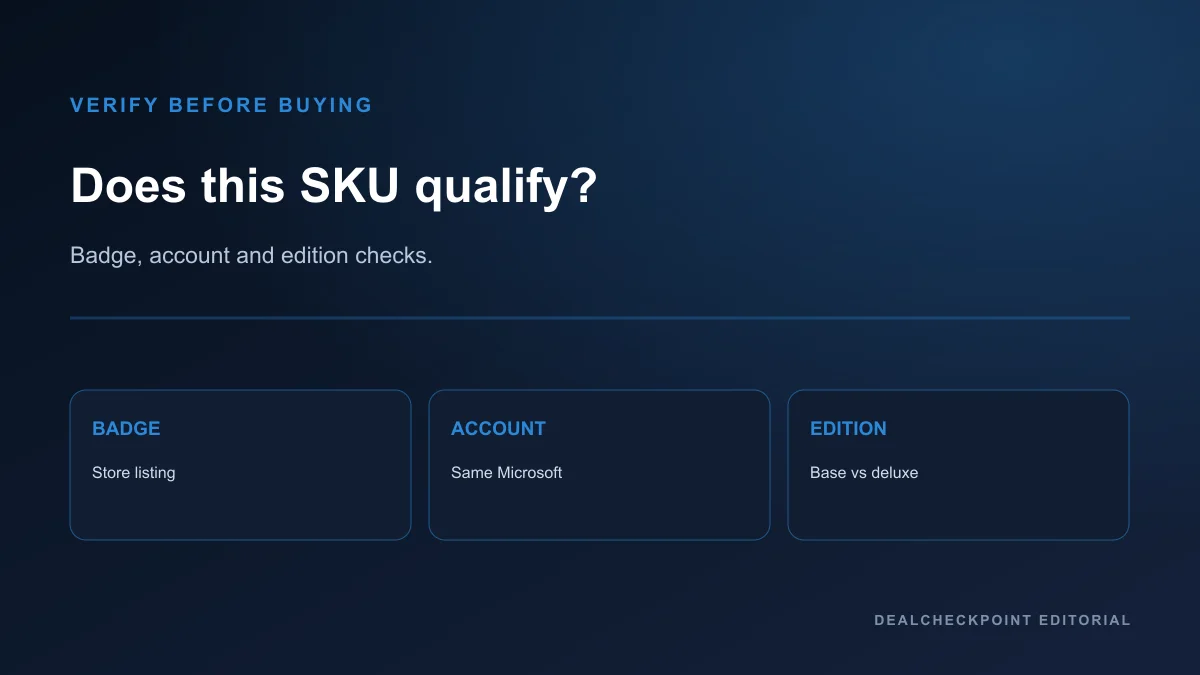
| 2 | Edition selector | Same badge on the exact SKU you will pay for, including deluxe tiers |
| 3 | Add-ons for owned qualifying games | Official FAQ covers add-ons bought or earned for the owned participating title — third-party-store DLC does not transfer |
| 4 | Your library after purchase | Owned title shows console and PC install options under one entitlement |
| 5 | Game Pass detail page | Game Pass badge alone does not prove permanent Play Anywhere ownership |
Screenshot the product page at purchase time if you dispute entitlement later. Marketing banners on Xbox Wire do not replace the checkout listing.
Step-by-step setup
1. Confirm the Play Anywhere badge on the Microsoft Store listing for the exact edition you are buying.
2. Sign into the same personal Microsoft account on your Xbox console and in the Xbox PC app on Windows.
3. Purchase or redeem the qualifying digital entitlement once — avoid duplicate checkout screens on the second device.
4. Install from Library on the first platform you plan to use, complete any first-run updates, and enable cloud saves if the game prompts you.
5. Play a short test session, return to the main menu, exit the game, and leave the console or PC online until sync completes.
6. On the second platform, open the same account library, install the title without repurchasing, launch online once, and confirm progress before going offline.
7. If achievements or saves fail to appear, verify account, edition and DLC SKUs before contacting support — rebuying the base game rarely fixes an account mismatch.
Troubleshooting
Wrong account signed in: Sign out of the Xbox app and console store, then sign back into the purchasing Microsoft account.
Missing Play Anywhere install button: Confirm you bought the digital SKU, not a Game Pass trial session alone; verify the badge on the purchased edition.
DLC visible on one platform only: Confirm you bought the add-on on the same Microsoft account that owns the qualifying Play Anywhere base game. Third-party-store DLC does not transfer through Play Anywhere.
Progress rollback: Ensure the last session uploaded online; avoid playing offline on two devices in parallel until sync behaviour is understood.
Steam friends cannot join your Microsoft entitlement: Expected — cross-play requires the game’s live-service rules, not shared store licenses.
If support cannot restore an entitlement, keep order numbers from account.microsoft.com billing history rather than repeating purchases on alternate stores.
Frequently asked questions
Does Play Anywhere work with PC Game Pass alone?
No. Game Pass provides access while subscribed. Permanent Play Anywhere cross-buy requires owning the qualifying Microsoft Store SKU, though many titles are available both ways.
Can I play on Steam and Xbox with one Play Anywhere purchase?
No. Steam requires its own license. Some games offer separate cross-save through publisher accounts, but that is not Play Anywhere.
Does every Microsoft first-party game qualify?
No. Always verify the badge on the current product page. Remasters and regional bundles can differ.
Will my DLC automatically work on both platforms?
For owned qualifying Play Anywhere games, add-ons bought or earned on your Microsoft account are playable across supported devices per the official FAQ checked Jul 22, 2026. Third-party-store DLC and non-Play-Anywhere products do not transfer.
Does Play Anywhere include Xbox Cloud Gaming?
No. Cloud streaming is a separate Game Pass Ultimate benefit with its own device and tier rules.
Where should Game Pass-first players start?
Browse best PC Game Pass games for newcomers for install picks, then read PC Game Pass explained before mixing subscription access with Microsoft Store purchases.
Final checklist
1. Confirm the Play Anywhere badge on the exact Microsoft Store SKU you will buy, including deluxe editions and bundles.
2. Separate cross-buy, cross-save, cross-play and Game Pass access in your plan — they solve different problems.
3. Use one personal Microsoft account on both console and PC; resolve account mismatch before repurchasing.
4. Remember Play Anywhere add-on coverage applies to add-ons bought or earned for an owned qualifying game — third-party-store DLC remains separate.
5. Run a short online test session and confirm cloud save sync before switching devices mid-campaign.
6. Treat verified examples like Forza Horizon 5, Sea of Thieves and Gears 5 as store-page checks, not guarantees for every edition.
7. If permanent console-plus-PC access after cancellation matters, compare member discounts against buying the Play Anywhere license outright.
Game images are official promotional or store assets belonging to their respective publishers and are used for editorial identification and commentary. DealCheckpoint does not claim ownership of publisher artwork.